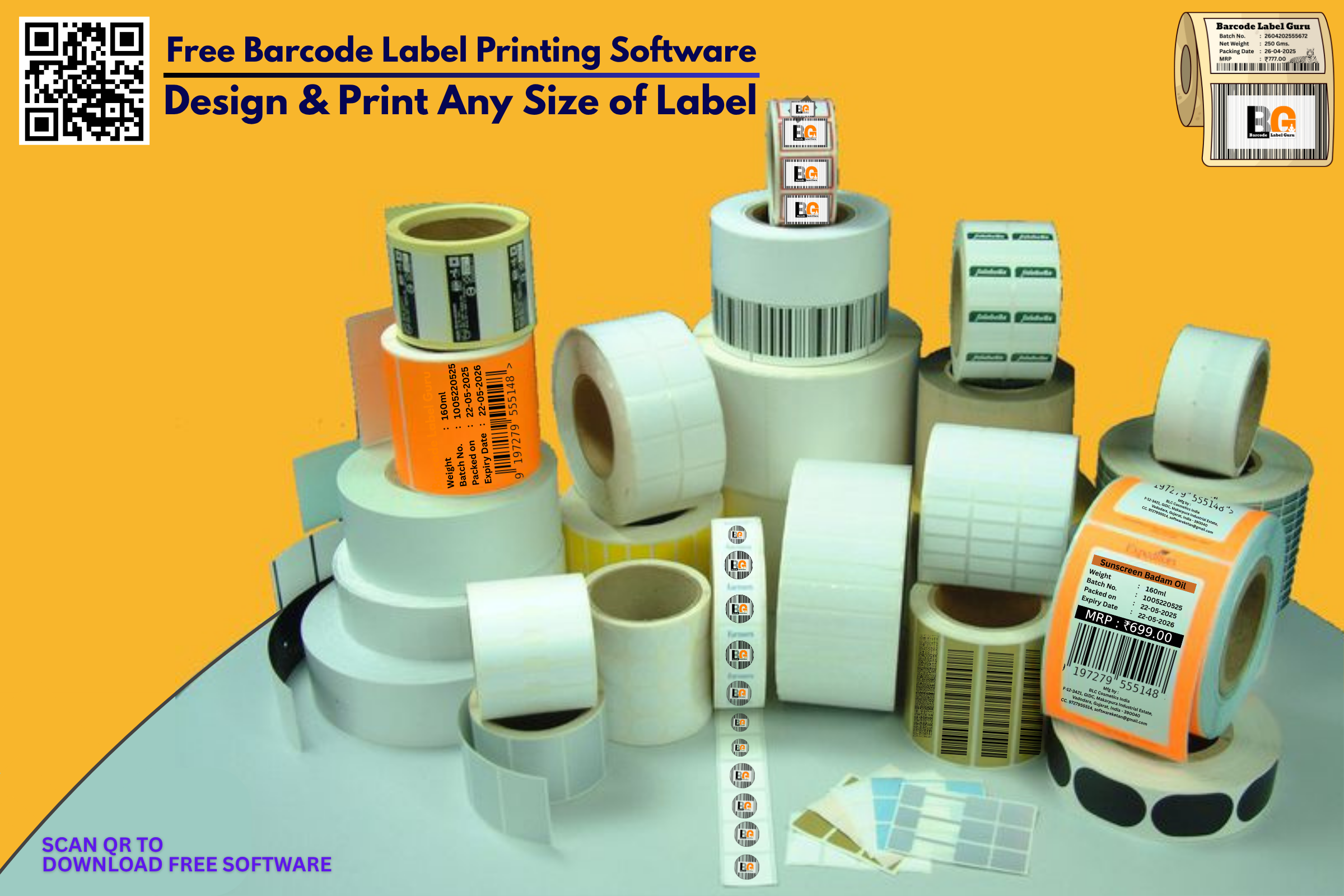
New Barcode Label Printing Software
is Versatile in Making New Fields & Customizations.
Support 360 Degree QR Code & Two Barcodes of Product in Same Label.


Watch Live Video How to Download,
Install & Operate this Software.
""""""""VIDEO""""""""
New Software
*** Software User Manual ***
---
* Download "Barcode Label Guru_Setup"
* Now install this Setup File into your PC / Laptop.(Any Windows O/s will support this Software)
* Once Installed this Software. Just Open the Software Source Folder.
* Find "Provider Setup" File
* Install this Setup File Also.
(Otherwise Software will Not Work)
* By Default Software will be installed into D Drive with Folder
"Barcode Label Guru"
If your Computer has no D Drive then you can install it into other drive also.
While Installing software setup if will ask for location drive to select for instalaltion.
* That's it. Software is Ready to Start. Just Double click on icon at desktop
"Barcode Label Guru"
Software will start with dashboard

* Click on "Company Info" Menu to Start.
* Edit the Firm Name, Addess, Text Fields as per requirement to Print on the Label.
& Press Enter Key to proceed further.
* Press Save Changes once you finish editing. & Restart the Software.
Will Give you effect Immediately.

* Click on "Items Entry" to Start.
* The List of Items Stored will display here
* Click on "New" to Enter New Item Entry.
* You can Export -Import data from Excel
* Bulk Delete is available


* Type the Item Name as shown in Screen Above
* Whatever you type here will be printed Same in Label.
(Supports Multi Language Item Name)
* Go on Pressing Enter Key will Guide you to type other required Data.
* Short Name : Text
* Item Company : BLG
* Item Group : General
* Unit : Product Unit
* Description : extra details
* Tick Mark on Check Box "Maintain Batch"
* Batch : Type Batch of your Product
* Sale Price : Our Price Box
* MRP : Type your product MRP Here to be printed on label.
* Barcode : Will come automatically once you save this Item.
(Barcode Nos will auto generate in sequence starts from 10001...You don't need to Purcahse Barcode Nos for GS1 unless its Demanded from your Vendors. GS1 Barcode Registration is Expensive. Also you can type your own barcode no here if you have it already can be typed manually, software will make Bar lines Image of the same Barcode No you have entered here.)
* Type Entering another Item Name with its Data Required.
* That's All. Your All Products are ready to Print any time now with any size you want to Print.
--- You can Always Double Click on any item name from list & Edit or Delete it.
* Close or Esc to Exit From the Screen.
*** Barcode Printing ***
* Data is Ready to Print Now.
Just Click on "Barcode Printing" Button
* Will Appear Below Screen to Print your Labels
* Press "OK" to load stored items list
* Now Select the Product you want to Print Label For
(Click on Check Box on Left to select)

* Type "Qty" i.e. No. of Labels you want to Print for the Same Product
* Same Product with different Weight Packing will show in seperate Raw as it has different Barcode No. & Barcode Image to Scan for.
* Print : Press Print Button to Print Your Label.
* QR Code : Same Product can print QR Code
* EAN13 : If you have EAN 13 Barcode Nos. use this Button to Print your Barcode Labels.
* Preview : Label Tempaltes will Show in List to Select Size & Pattern to Print your Label.
*** List have Few Generally used Ready Sizes Templates Both for Thermal Printers & Laser Printers A4 Sheet Labels.

* Once you select the size, Just Click on "Preview"
* Will Show you Label Preview.
* Make Sure that you make the Printer Default which you want to Print Label.

* Preveiw Screen of Label Appears on screen as per default Priner & Printer Page Preference Size Selected.
* You have to adjust Printer Page Size as per actual paper size in printer Driver.
* Click on Left Top Corner Small Printer Icon to Print the Label
* Click on pdf or Export Button to make this label pdf page.
* Click on Close Button to Close this Screen.
* Page Print Section
* Shows No of Pages to Print & It's Selection.
===
## Report Builder Tool ##
* If you make another Crystal Report Template
Please Save it here in Report Builder Tool

Paid License Basic Version
Charges from 999/- to 19999/-
Depending on Customization Requirements
Whats App us for Quotation : 9727955514
 ## Thank You For Downloading our Software ##

## Fields Used in Software for Label Designing ###



.png "Barcode Label Printing Software")


Whats App Support Number
+91 97279 55514
===


===
Few Label Templates
Generated from BLG Software


.png "Barcode Label Printing Software")


& Lot More Designs
Explore the Website for All Category Different Templates Ready
Support Number : +91 97279 55514